
Part 1 — Set up
Five short steps. The extension walks you through them on its own setup page; this is the same path with pictures.
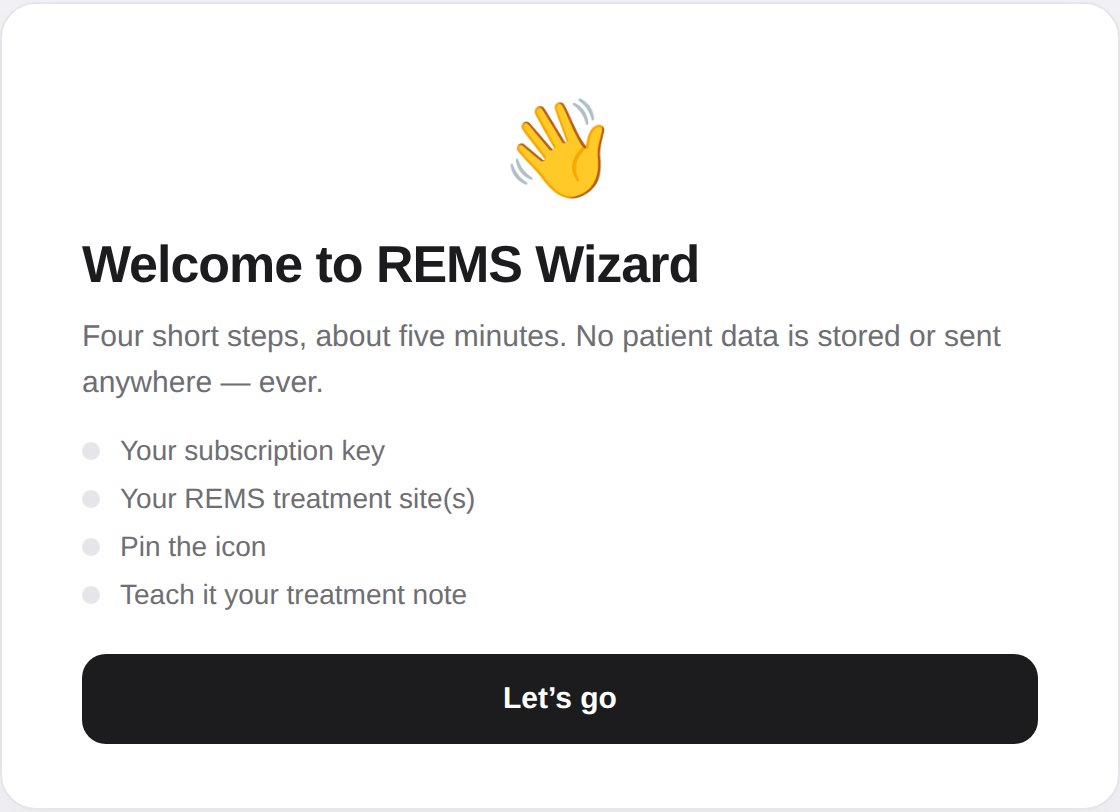
1Install and activate 1 minute
After you start a trial, the page that follows checkout does the installing for you:
- Click Add to Chrome. The Chrome Web Store opens in a new tab — click Add to Chrome there and confirm.
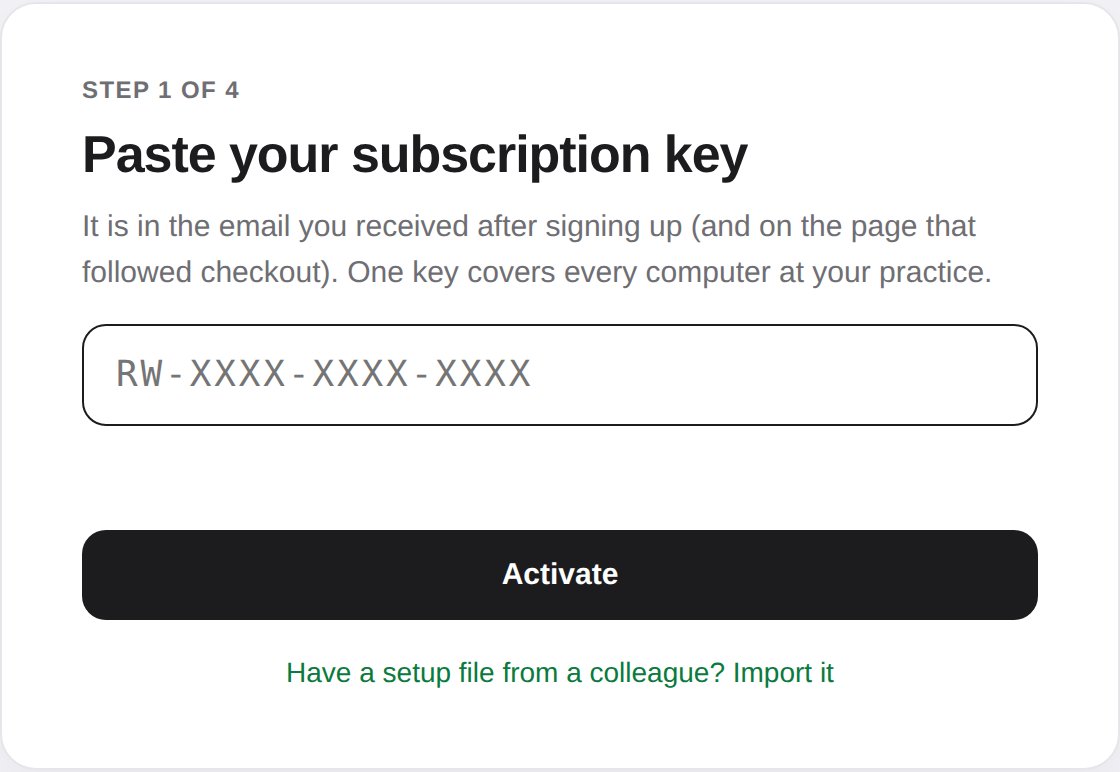
- Come back to the checkout page. It notices the install by itself and shows Activate REMS Wizard; the key is handed over with one click — nothing to copy.
- REMS Wizard opens its own setup page in a new tab and takes it from there.
2Pin the icon 10 seconds
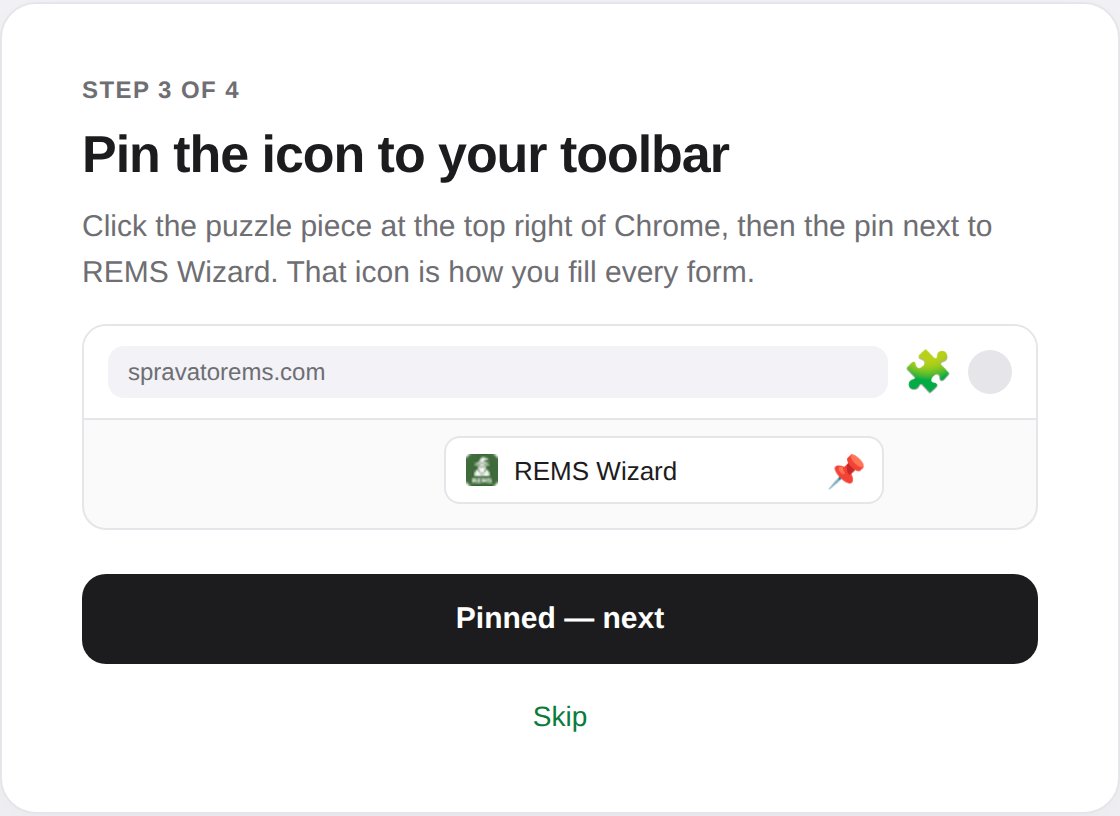
Chrome hides new extensions behind the puzzle piece at the top right. Click the puzzle piece, then the pin next to REMS Wizard. That icon is how you fill every form, so it should always be visible.
3Your treatment sites 1 minute
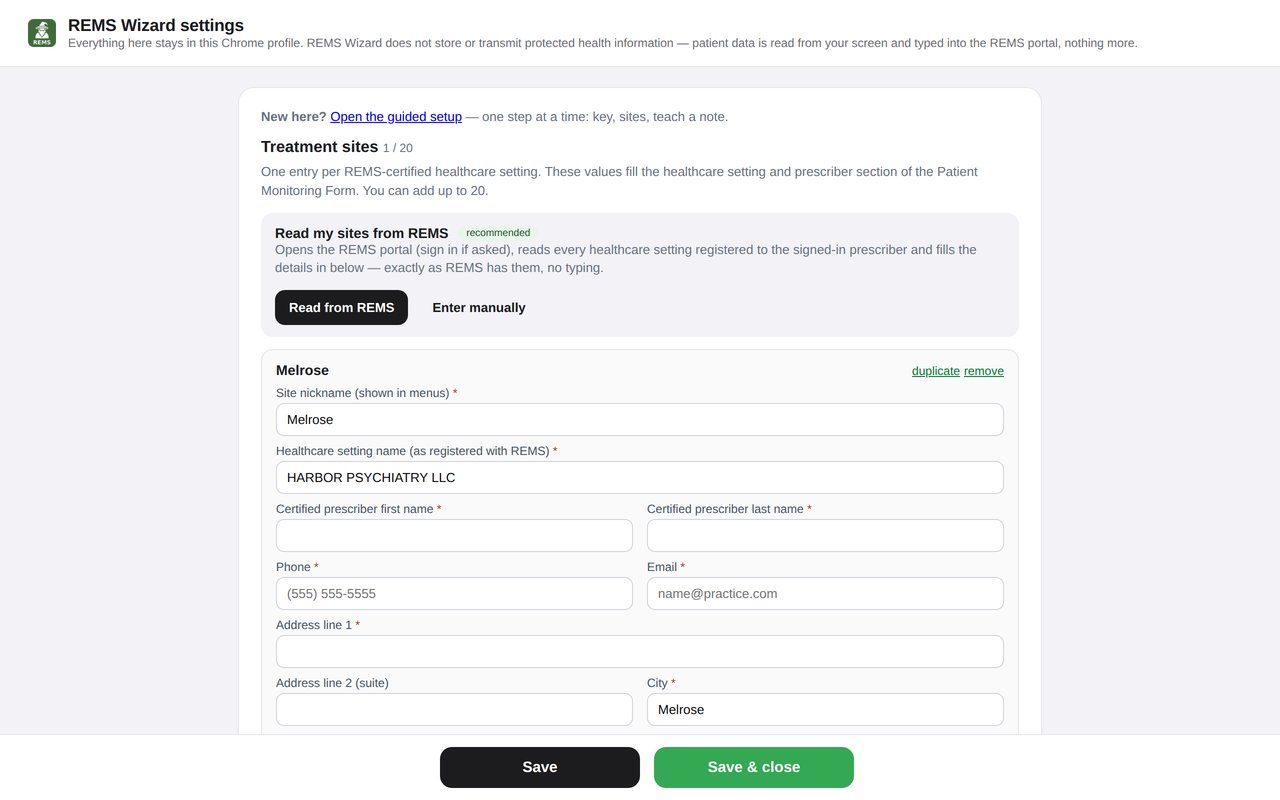
Every REMS form names one of your certified healthcare settings. Rather than typing them, let the Wizard read them from your REMS account:
- Click Read my sites from REMS. The REMS portal opens (sign in if it asks) and the Wizard opens a blank monitoring form, reads every setting registered to your login — name, address, DEA, certified prescriber, phone, email — and comes back.
- Check the list. Change a nickname if you like (that is what the widget shows in menus); everything else is exactly as REMS has it.
- Click Save these sites.
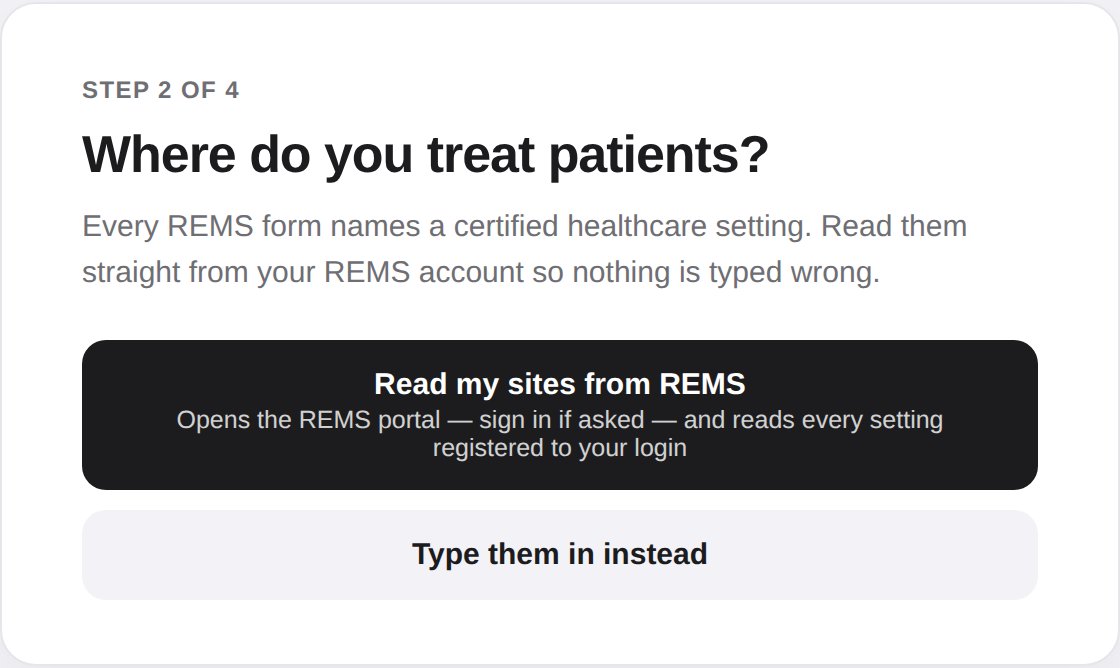
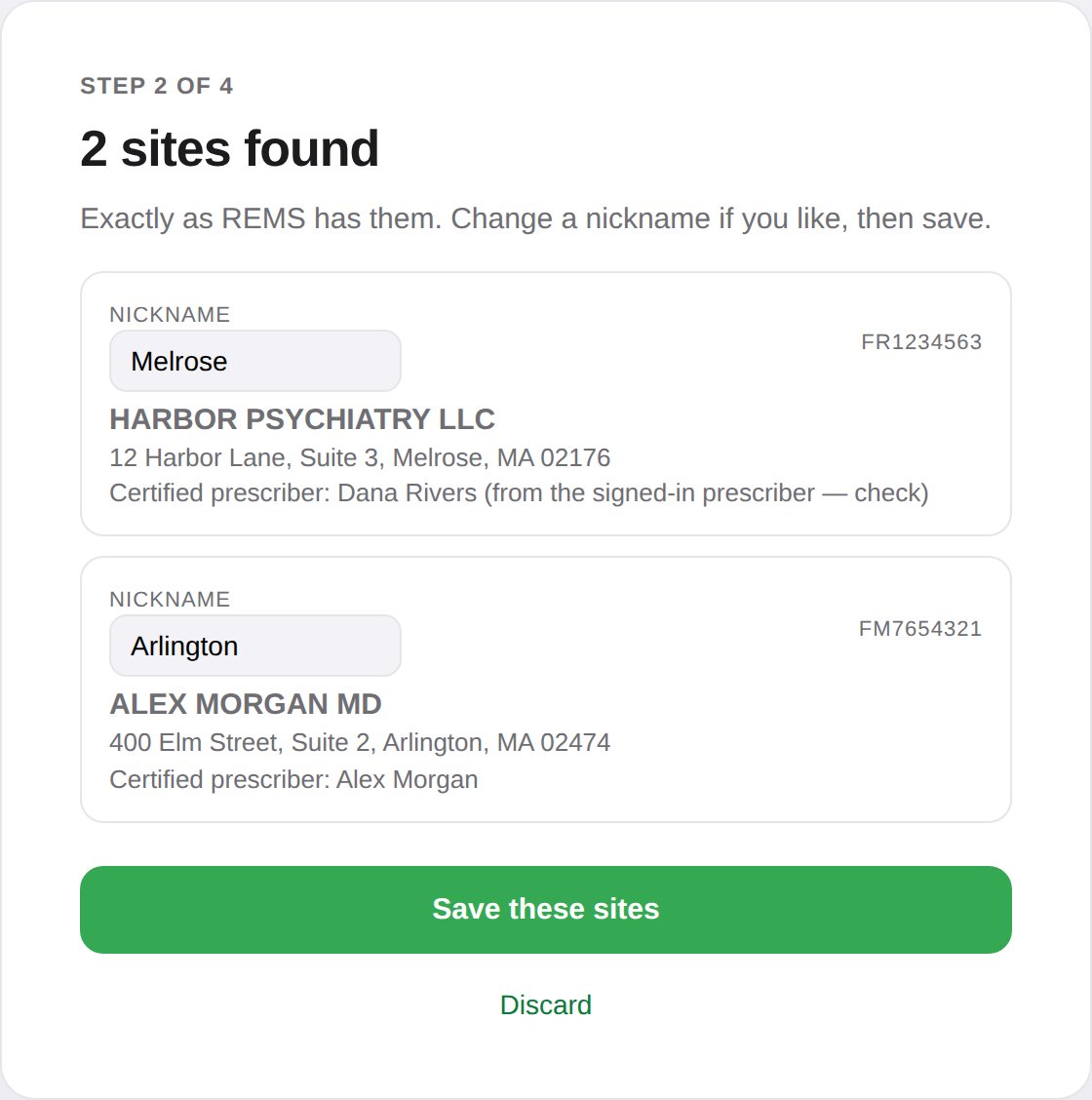
Prefer to type? Type them in instead gives you a one-screen form per site. Use the setting name and DEA exactly as registered with REMS — the form is pre-filled from this on every submission.
4Teach it your treatment note 3 minutes, once per template
The Wizard needs to see where each value lives in your note template. You show it once by clicking.
- In your EMR, open any completed, signed Spravato treatment note (a test patient is ideal).
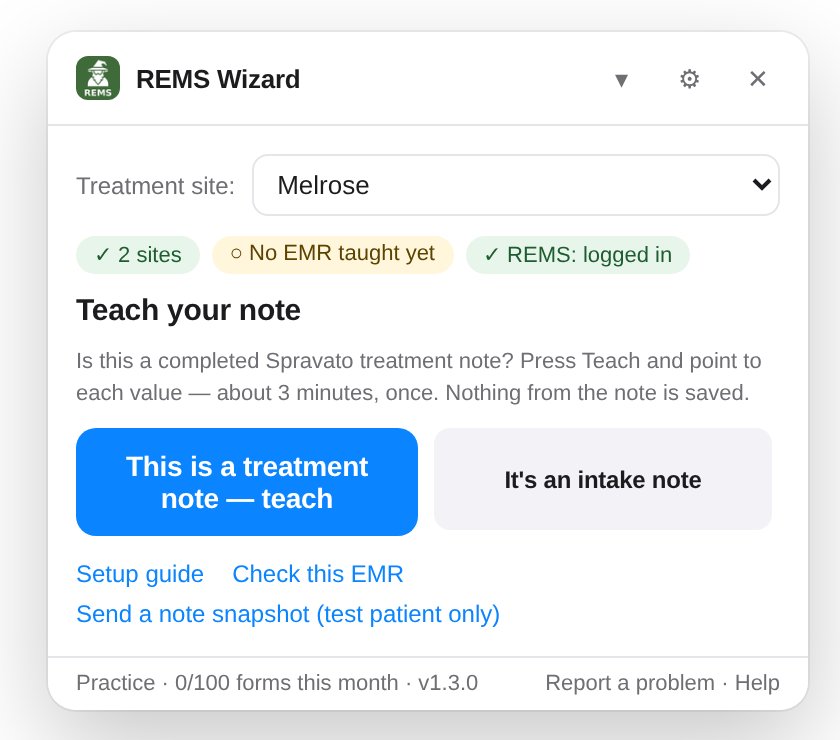
- Click the REMS Wizard icon. The widget says Teach your note — click This is a treatment note — teach.
- A card lists the values it will ask for. Press Start.
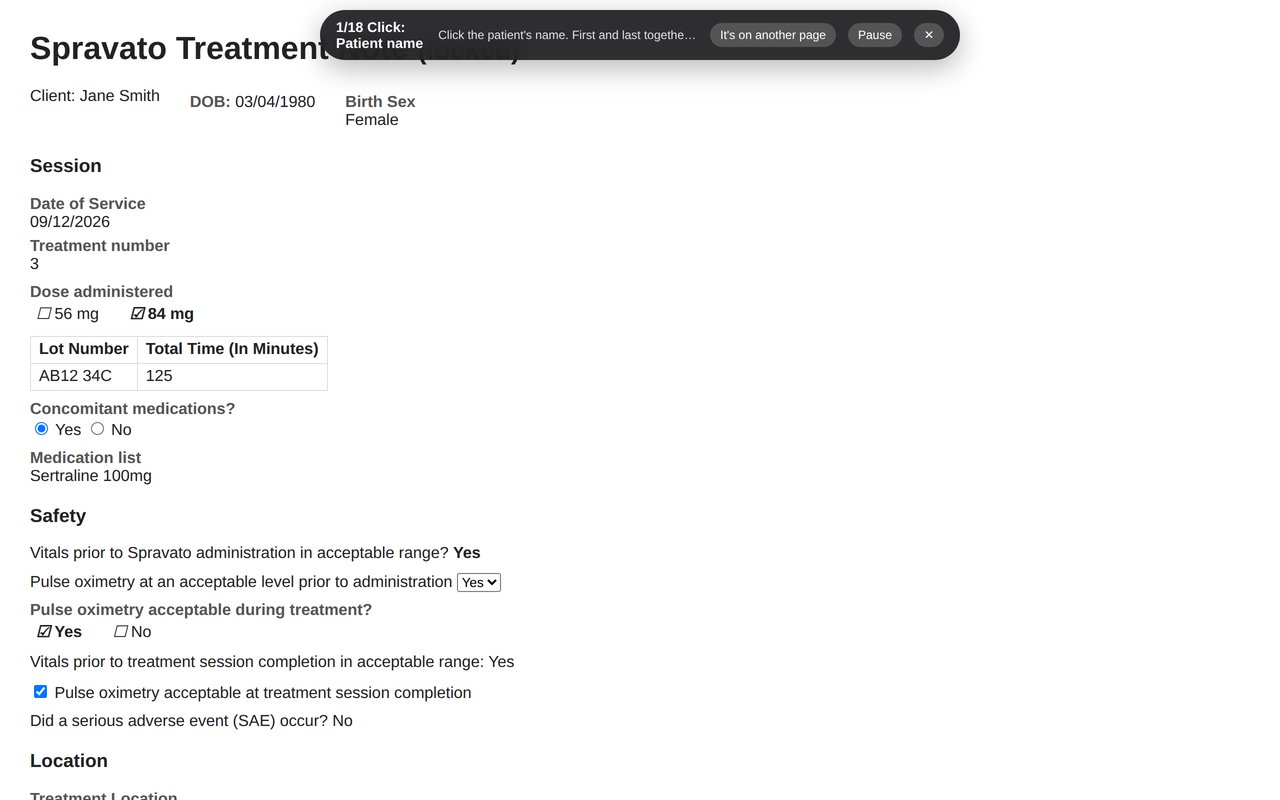
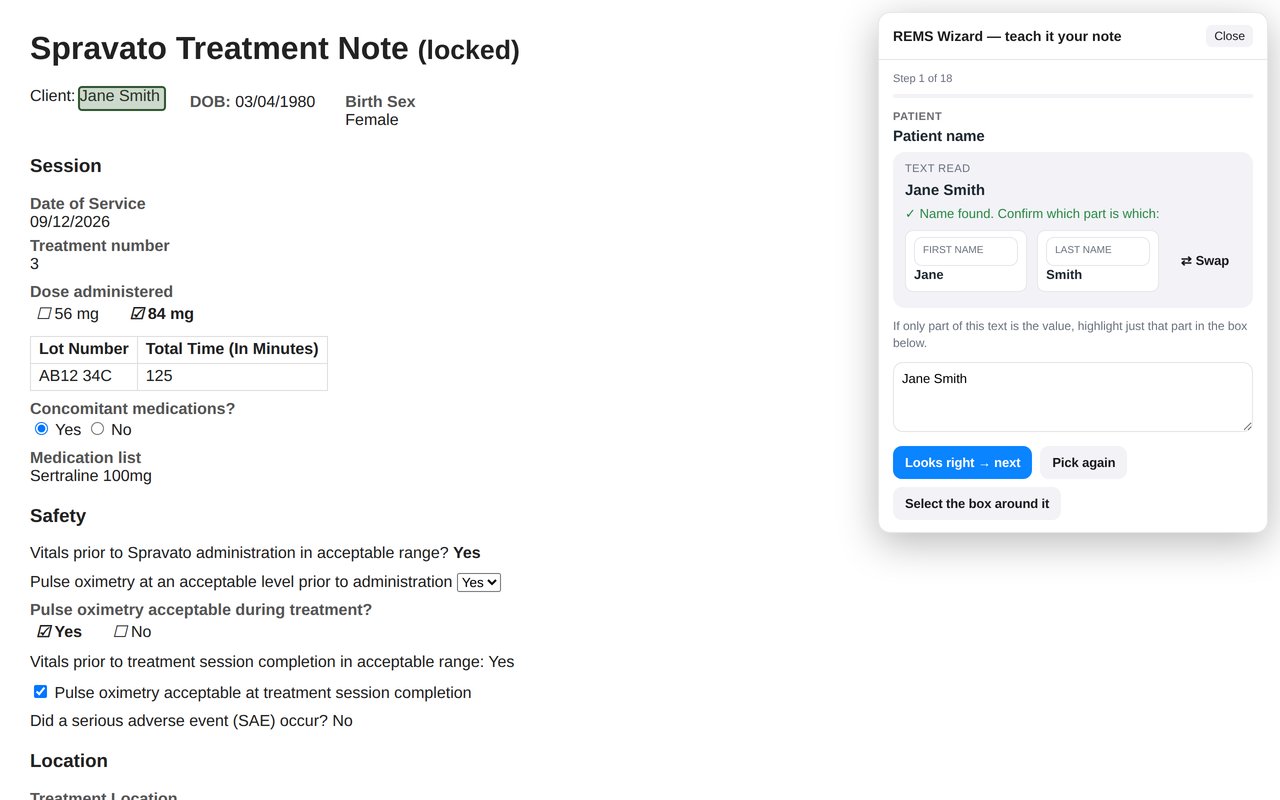
- For each value, a small prompt at the top names what it wants — Patient name, Treatment date, Dose… Click that value on the note. A card shows what it read; press Looks right → next.
- After the last value, press Save. The widget now shows Treatment note with Fill REMS ready.
Things that come up while teaching
- Yes / No questions — click the box that holds both options (the whole "Yes ○ No" row), not just the word that is ticked today. Then the Wizard can read the other answer on other notes.
- Lists (medications, conditions) — click the box that holds the whole list. If it continues in a second box, use Add another box.
- Addresses in pieces — if the note shows the street on one line and city / ZIP elsewhere, click the street; the Wizard says "Street only" and asks for the rest one by one. Skip the ones your note does not show.
- On another page — some values (often the address) live on the patient's profile, not in the note. Press It's on another page, click the tab or link that opens it, click the value there; the Wizard comes back to the note by itself.
- Not on this note — press Skip. Required values you skip are asked for later, at fill time.
- Several sites — if your note says which location the patient belongs to ("Preferred location: Arlington"), the Wizard asks you to click it once. See Several sites.
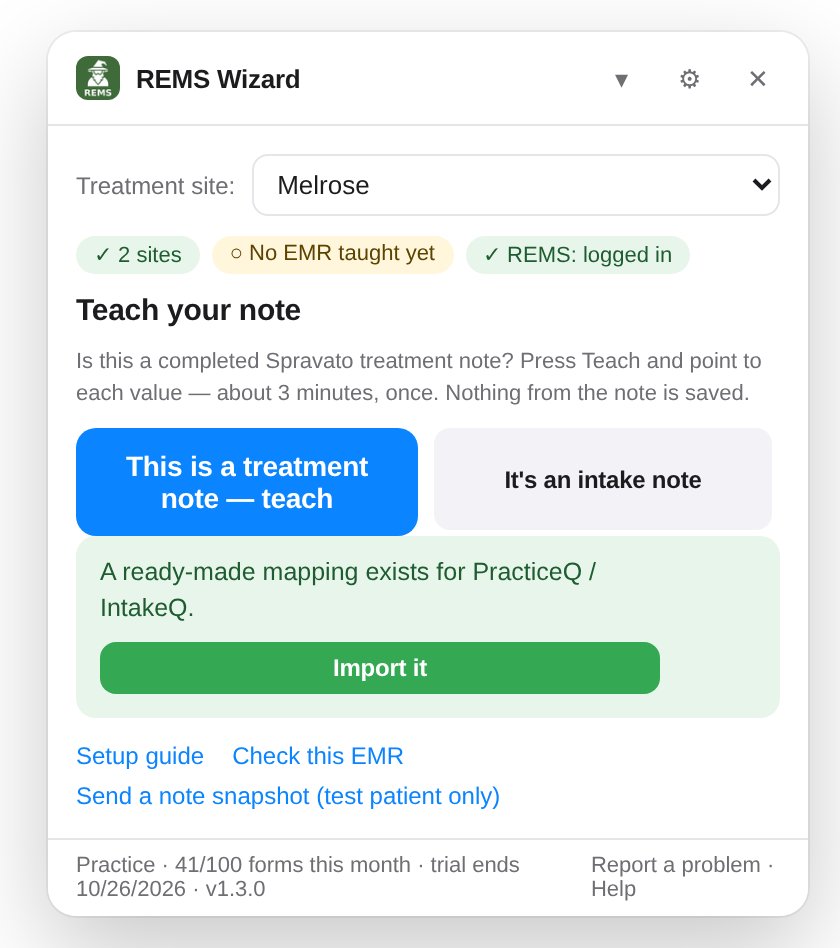
5You're set
The setup page shows what is in place. From now on the only thing you do is open a note and click the icon.
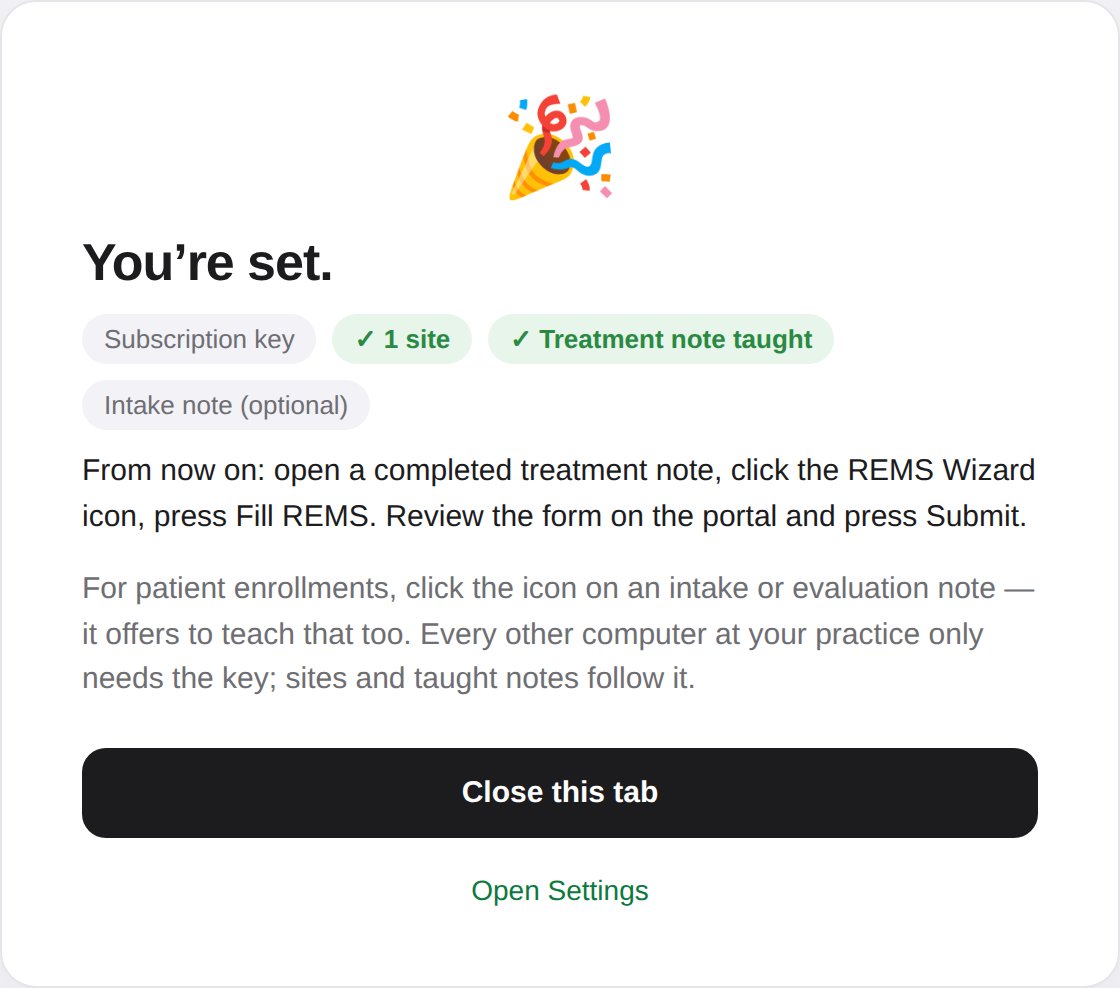
Patient enrollments work the same way from an intake or evaluation note — the first time you click the icon on one, the widget offers to teach that note too (about four minutes). See Enroll a patient.
Part 2 — Every day
Open a completed note, click the icon, press one button.
▶Fill a REMS monitoring form ~20 seconds
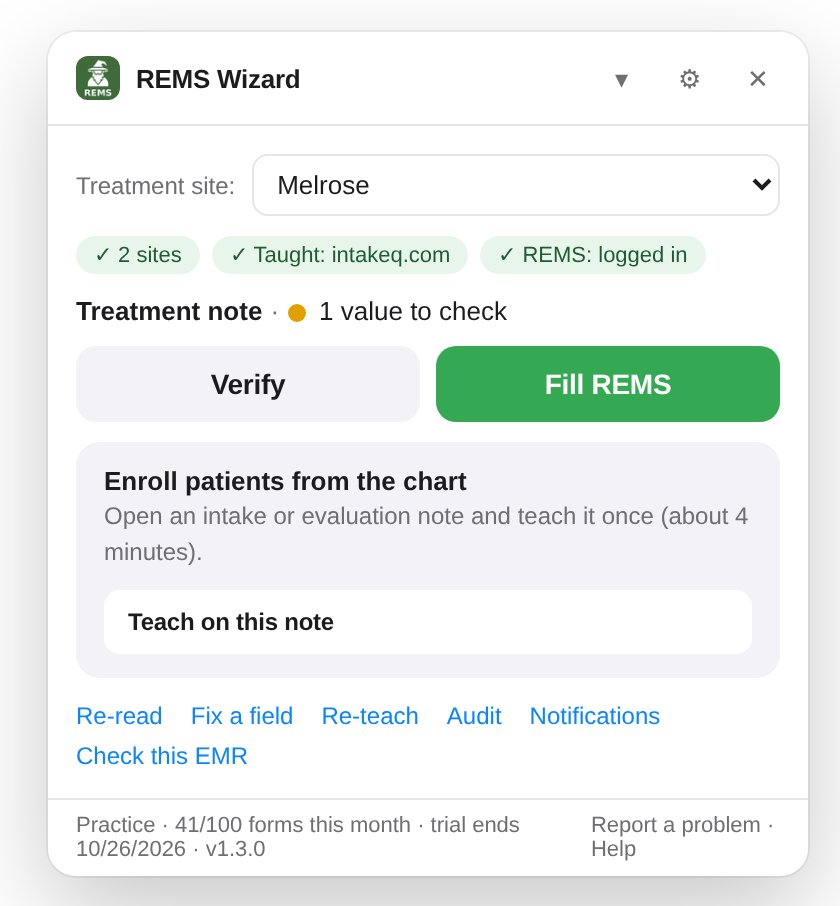
- Open the completed treatment note and click the REMS Wizard icon. The widget reads the note and shows Treatment note · Ready to fill (or how many values need a look).
- Press Fill REMS.
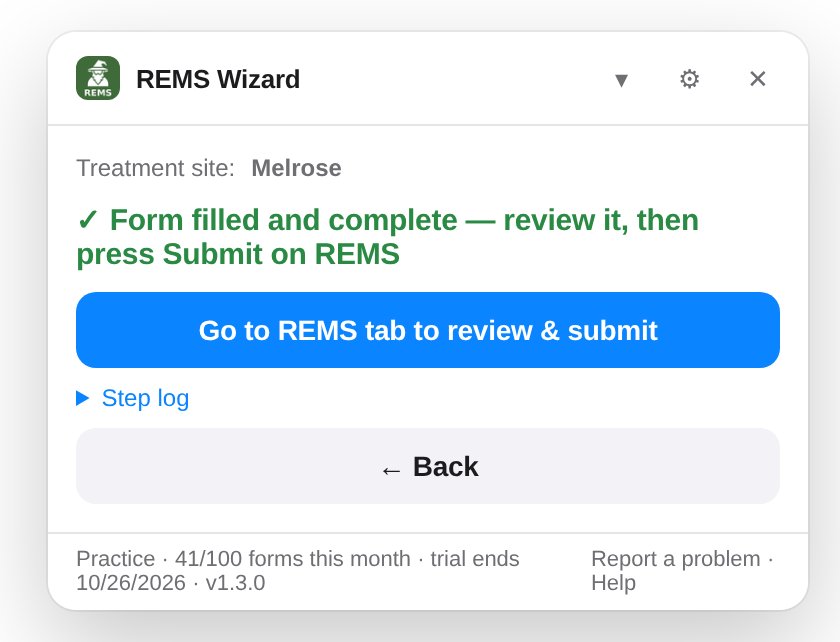
- The Wizard switches to the REMS tab (signing you in is up to you if the session expired), finds the patient, checks that no form already exists for that date, fills every field and verifies it.
- The REMS tab comes to the front with the form filled. Review it and press Submit on REMS. The Wizard never submits for you.
✓Check or fix a value
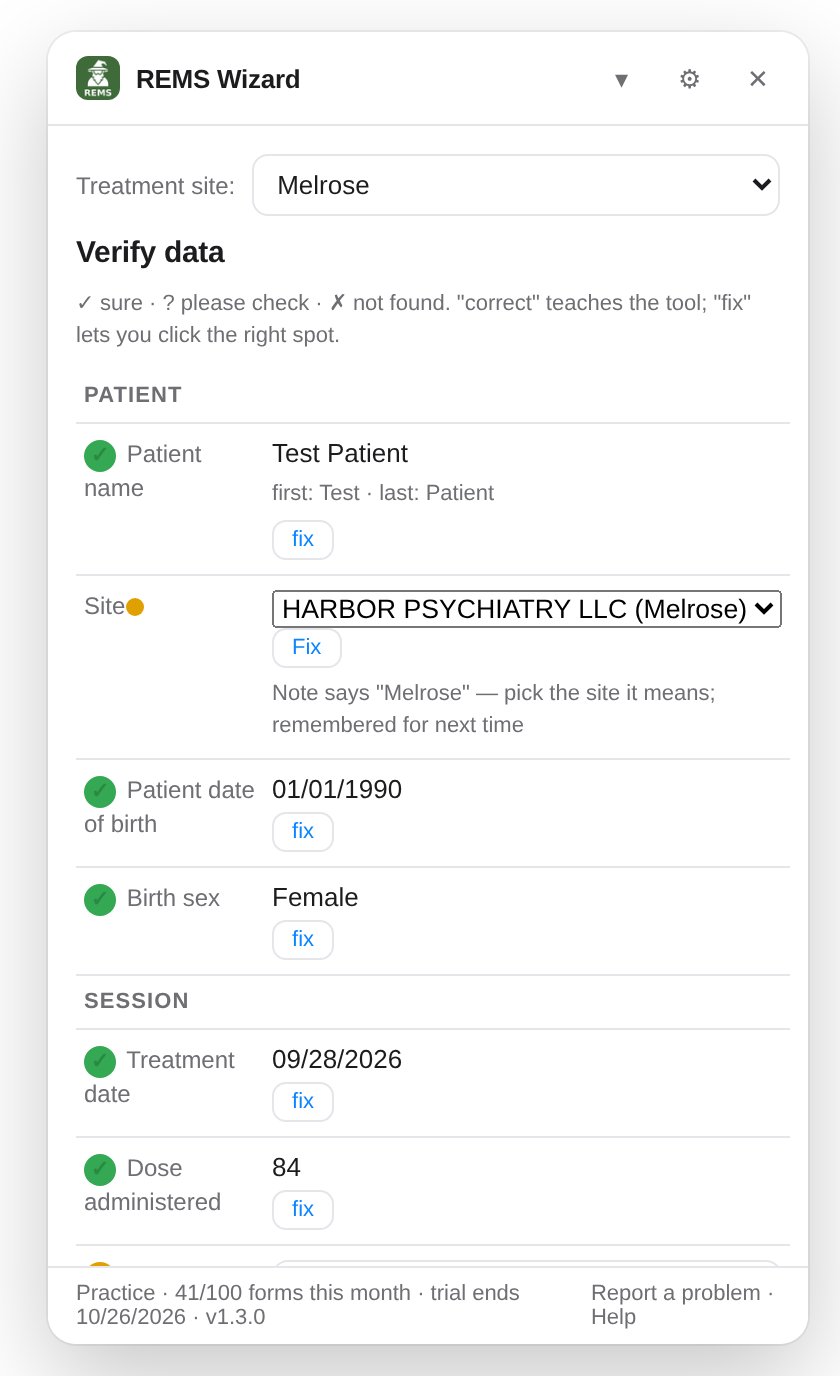
Press Verify to see every value next to its confidence mark: green for sure, amber for "please check", red for not found. You can type over any value for this one form.
- correct tells the Wizard the value is right — it learns and stops flagging it.
- fix lets you click the right spot on the note; that fix applies to every note from then on.
- Changed note template? The widget says which field it can no longer find and offers to re-teach just that one.
+Enroll a patient in REMS
Open the patient's intake or evaluation note and click the icon. The widget recognises it as an Intake note, reads what is on the page, and shows one button named after the patient:
- Press Enroll [patient] in REMS. If part of the chart lives on another page (the address, usually), the Wizard visits it and comes back.
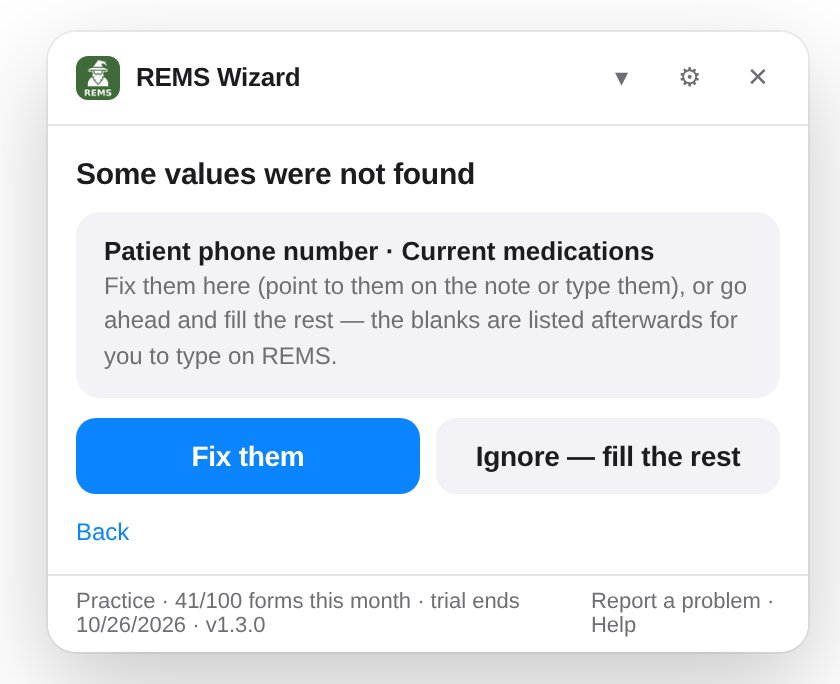
- If anything required was not found, a card lists it first: Fix them (point to them on the note or type them) or Ignore — fill the rest.
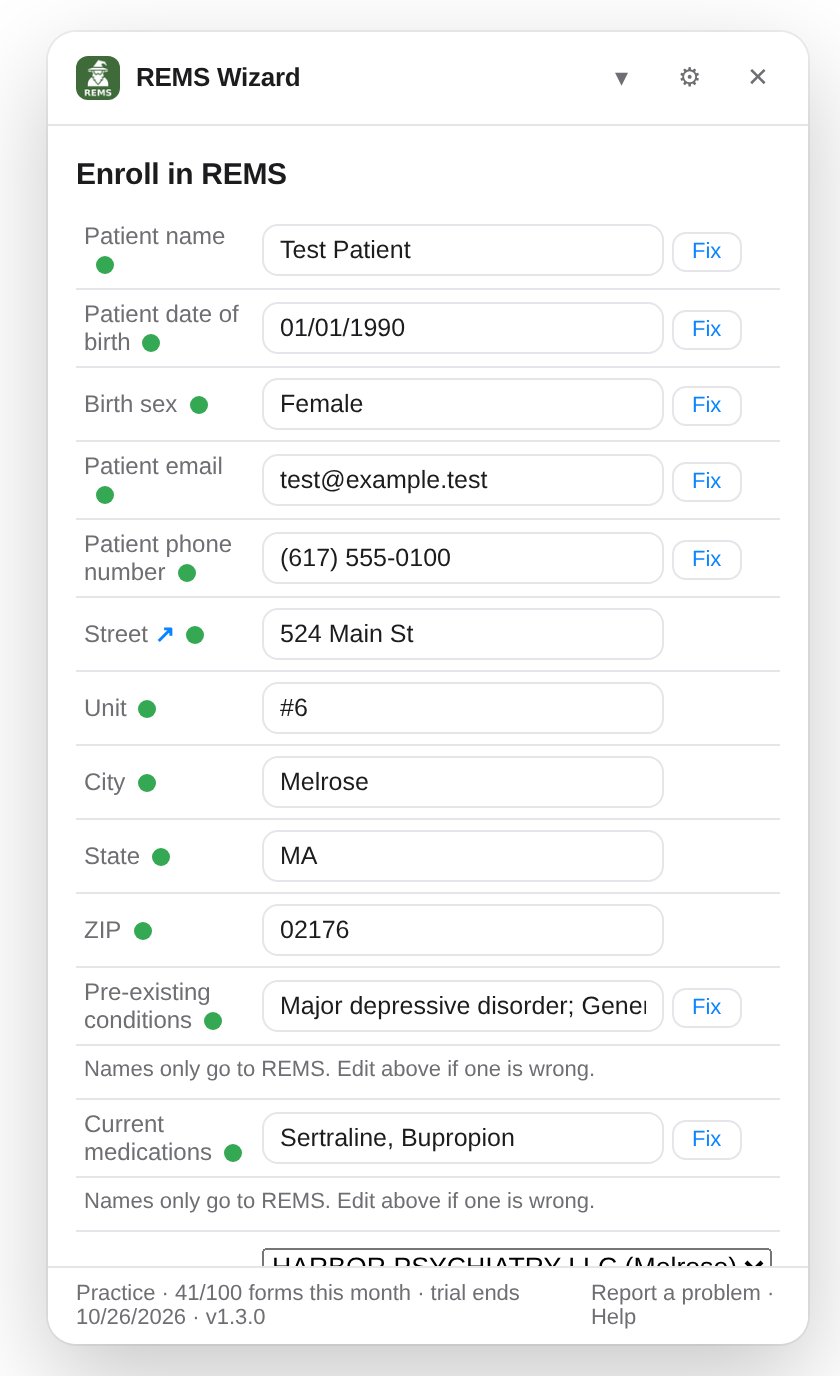
- The REMS tab opens the enrollment form, filled. On a delegate login the Wizard also picks the prescriber and healthcare setting for you. Review it and press Submit on REMS.
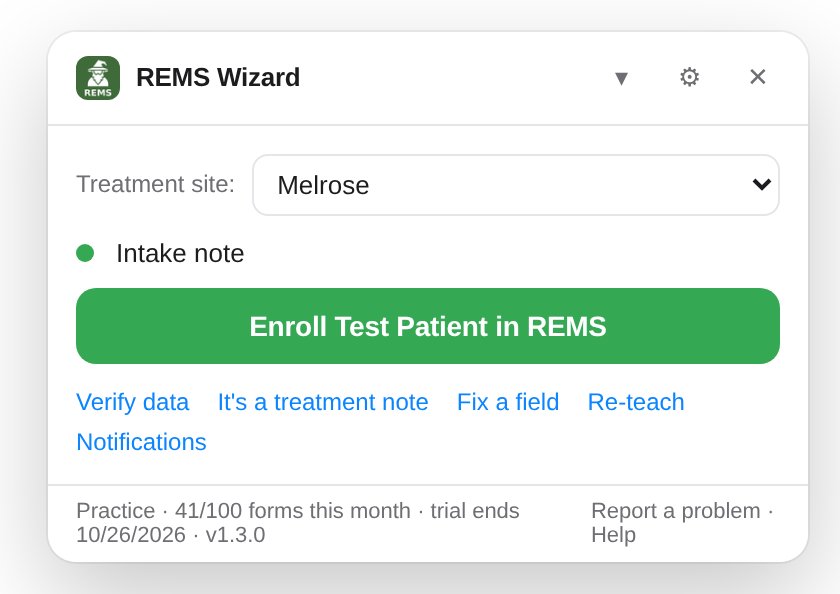
Verify data (the small link under the button) opens the full review if you want to see every value before enrolling. Medications and conditions are sent as names only — doses and dates are dropped, as REMS expects.
⌂Several treatment sites
With more than one site, the widget needs to know which one each patient belongs to, because the healthcare setting and prescriber on the form follow it.
- Pick it by hand at the top of the widget (the Treatment site menu) — fine for a small practice.
- Let the note decide. During teaching, click the value that names the site ("Preferred Clinic Location: Arlington"). The first time a new value appears, the widget asks once which of your REMS settings it means and remembers it for every note that says the same.
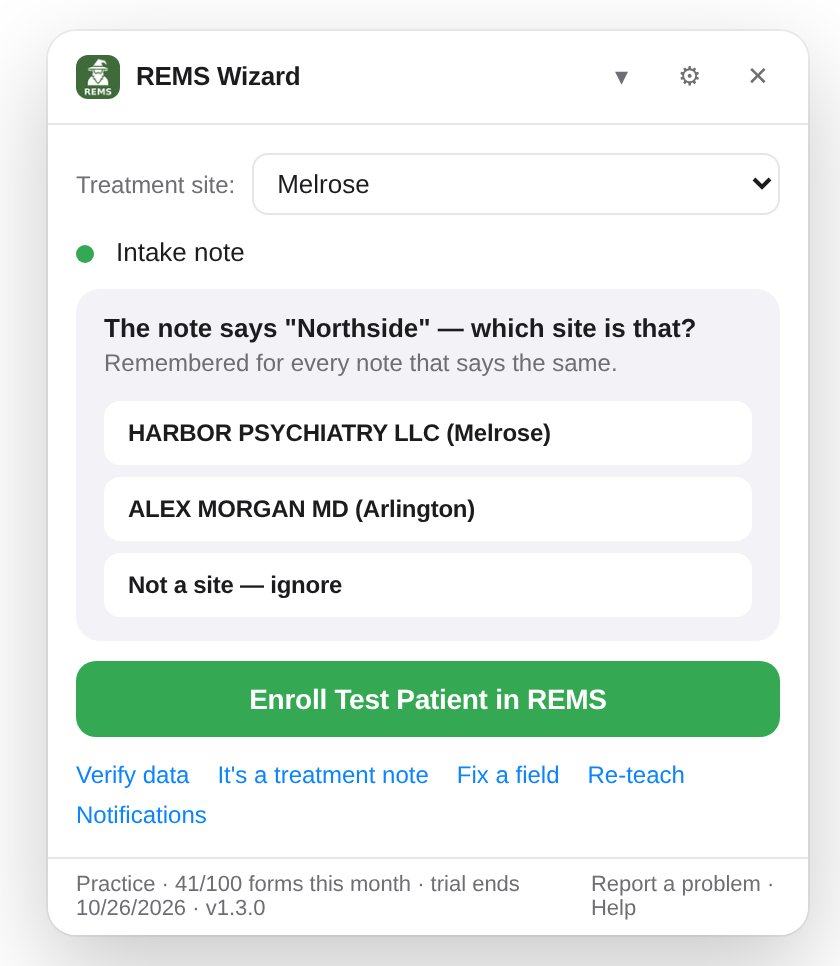
In the review, the Site row shows the match and lets you change it — the healthcare setting and prescriber rows move with it.
?Pages it doesn't know
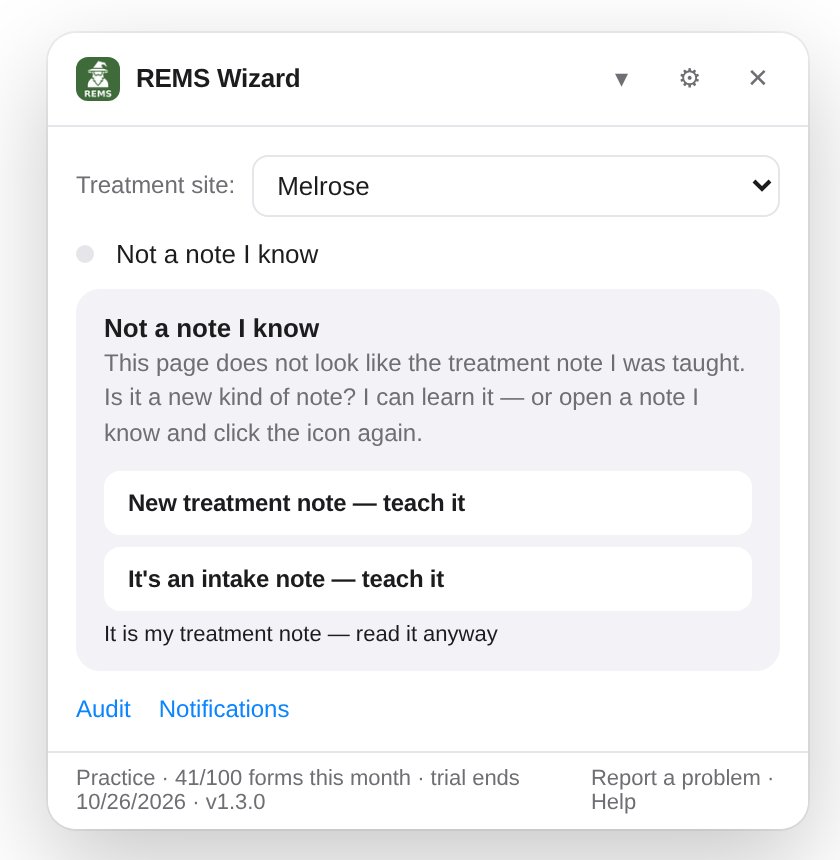
On a calendar, a client list or a note type it has never seen, the widget stays quiet: no reading, no Fill or Enroll button. It only asks whether this is a new kind of note to learn.
≡Audit and notifications
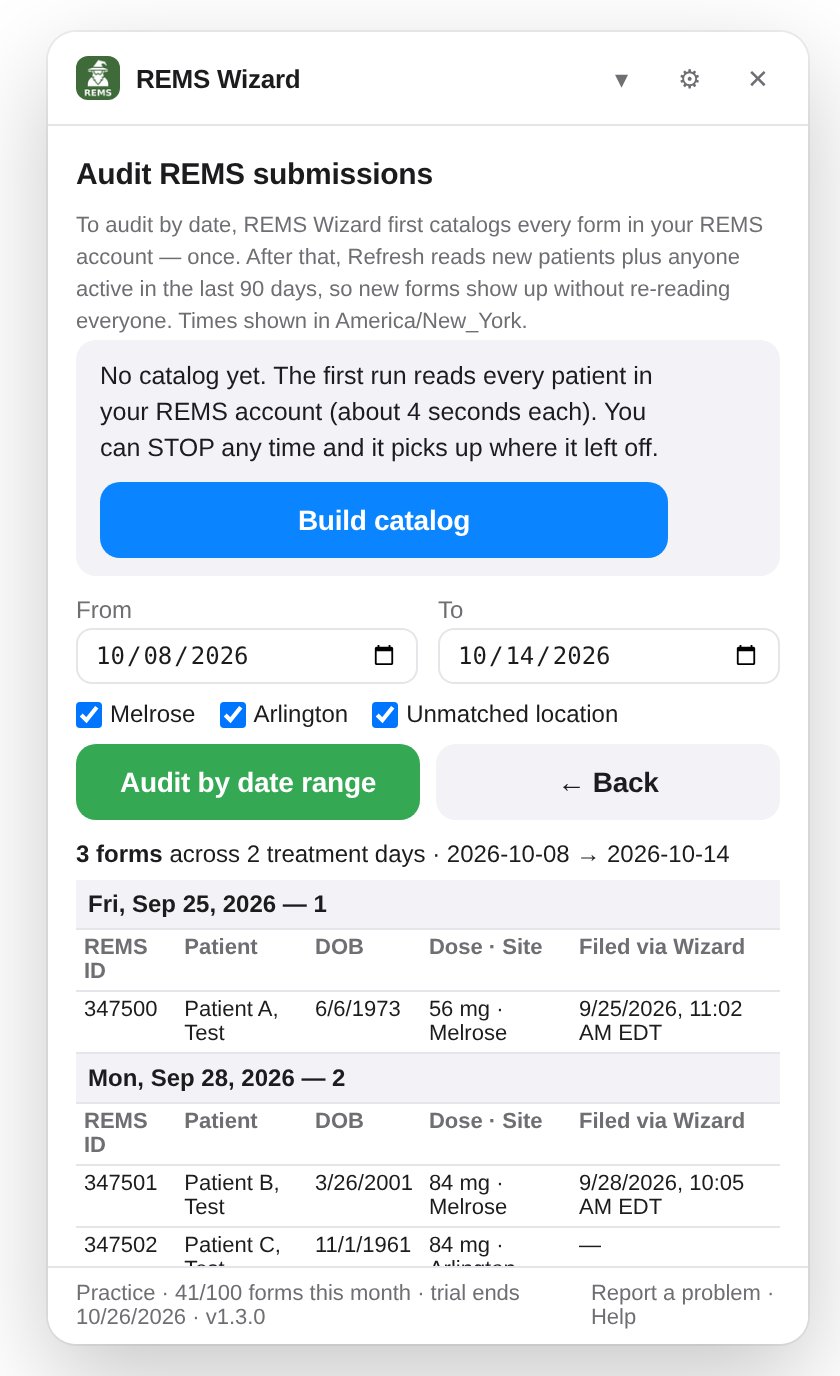
Audit (link on the widget home) catalogs every Patient Monitoring Form in your REMS account once, then keeps it current. Pick a date range and site and get every form grouped by treatment day — exported to CSV, Excel or PDF for your compliance file.
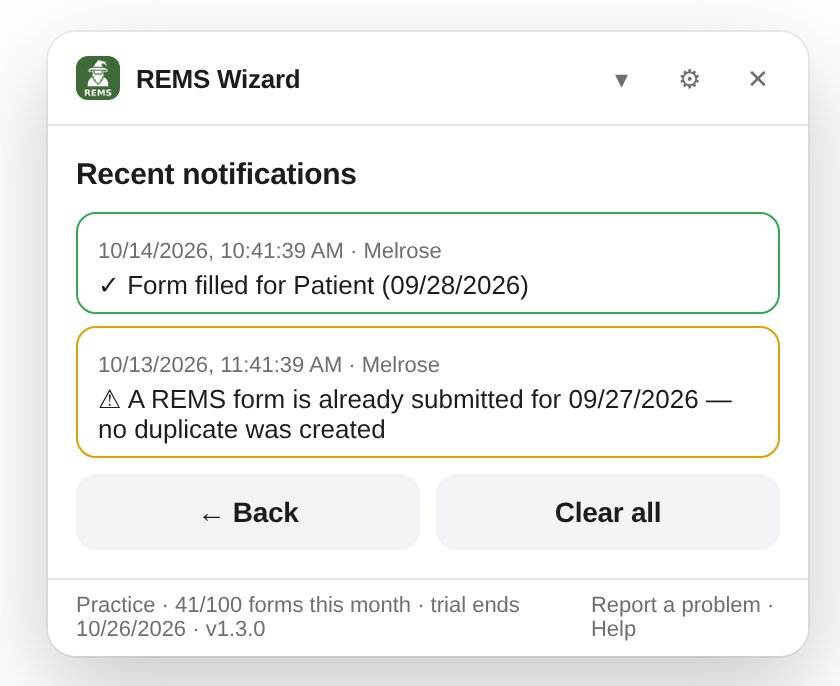
Notifications is the activity log: every form filled, every duplicate stopped, every problem — with the site and time. Nothing from it is shown on the widget home, so another patient's result never sits on the screen.
Reference
⇄Other computers and staff
One subscription key covers every computer at your practice. On each new computer: install, enter the key, done — the sites and taught notes arrive with it. When something is taught or fixed, the widget asks once whether this computer shares with the others or keeps its own copy.
An administrator can protect the shared mapping (Settings → Sharing & protection) with a password: everyone can use it and correct values form by form, but changing the mapping for all users needs the password, entered once per computer. A copy of the password is emailed to the address the subscription was registered with.
⚙Settings
Click the gear in the widget. Sections: Treatment sites (read from REMS or edit by hand), Taught notes, Subscription (key, usage, optional BAA), Sharing & protection, and Help (diagnostics log, reset).
!If something goes wrong
The widget says what happened and what to do next. The usual ones:
| You see | Do this |
|---|---|
| "REMS signed you out." | Sign in on the REMS tab, then press Fill REMS again. |
| "Some values were not found." | Fix them (click the value on the note) or Ignore — the blanks are listed afterwards for you to type on REMS. |
| "Not a note I know." | You are not on a taught note. Open one, or teach this kind of note. |
| "A REMS form is already submitted for <date>." | Nothing to do — the Wizard refused to create a duplicate. Check REMS if you believe no form exists. |
| "The REMS portal did not respond in time." | Check the REMS tab; if it is loading slowly or showing an error, wait a moment and try again. |
| "The REMS page did not look the way the Wizard expects." | Finish this form by hand on REMS. We are notified automatically when the portal changes and ship a fix. |
| "Finish setting up." | A key or a treatment site is missing — the button opens the setup page at the right step. |
Still stuck? Report a problem at the bottom of the widget sends us the diagnostics log — field names, confidence and errors, never patient data — and we reply within one business day.
◎Privacy
REMS Wizard reads the note on your screen and types into the REMS page you are signed in to. No patient information is stored or sent anywhere. What leaves the browser: your subscription key, a count of forms filled, the field positions you taught (shared with your other computers), and — only if you press Report a problem — a de-identified log. Please never send patient information to support; use a test patient for screenshots.
✉Help
Email [email protected] — Monday to Friday, 9 am–6 pm Eastern, one business day. If teaching your template does not work on your own, we will do a 20-minute screen share with you on a test patient.